Night mode can already cover the whole task
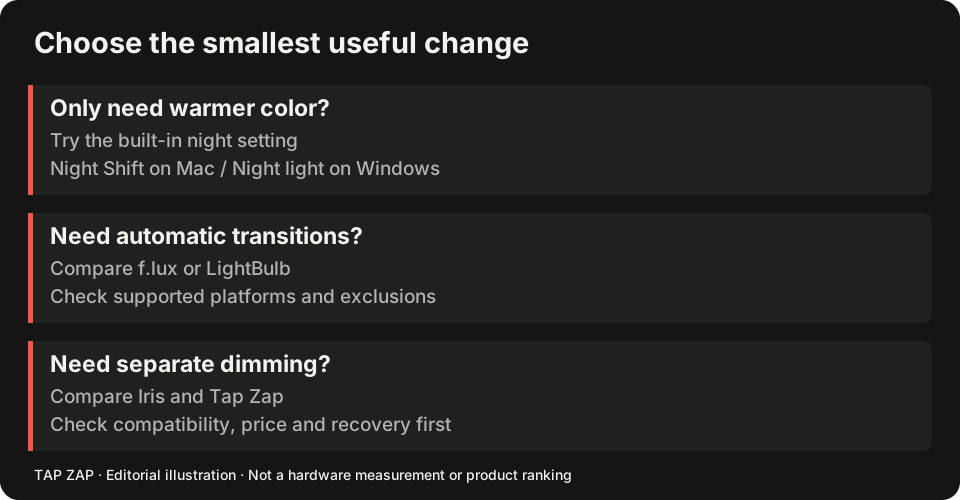
If your goal is a warmer evening desktop on a supported system, built-in night mode may be sufficient. Apple Night Shift offers manual activation, warmth and scheduling; Windows Night light offers strength and custom or sunset hours. Start there before buying an app.
Additional controls are useful when a specific task remains unresolved, such as a light document that is still too bright at a useful hardware setting, or a need to return automatically to ordinary colors in an editor. Warmth by itself is not automatically an incomplete solution.
Separate appearance, amount and timing
Warmth changes the balance of color channels. Hardware brightness controls the display through its own electronics. Software brightness changes the image sent to the display. The resulting exposure also depends on content, room light, viewing conditions and duration; a warmth slider does not describe all of them.
For a simple check, hold hardware brightness fixed and compare the same white document with night mode on/off. Then keep warmth fixed and change brightness separately. The two adjustments can feel different because they solve different display tasks. A warmer screenshot does not establish zero short-wavelength emission or a guaranteed sleep benefit.
A color adjustment cannot certify the panel’s waveform
PWM is one possible method of changing average light output over time. Some panels change modulation as hardware brightness changes, and others behave differently. A warmth control alone neither causes nor solves every flicker issue. Read the hardware-brightness guide and software-dimming explanation before following a maximum-brightness strategy.
Tap Zap changes software image values: transfer tables on Mac, a default color matrix or Legacy gamma path on Windows. It does not measure the panel’s emitted light or reprogram its PWM controller. Software state, visible darkness and optical modulation are different observations.
Choose the extra control by the task
For warm reading, use the included control if it works. For app-specific ordinary colors, investigate f.lux or LightBulb. For software brightness and named presets, compare the paid workflows. The Mac guide and Windows guide link directly to the relevant comparisons; the Night Shift comparison isolates the paid-versus-built-in choice.
For color-critical judgments, disable appearance filters and use your normal managed display workflow. For a rotating work routine, select a scheduling model you can verify rather than treating sunset timing as a health prescription. Paid filters do not automatically establish medical benefits.
A five-minute decision before adding another app
Use a familiar text page, color-coded diagram and gray ramp. Start with mild warmth in your actual room. If you can read comfortably, keep ordinary colors when needed and get the schedule you want, there may be no missing feature.
If you need more, change one control at a time, inspect dark-tone separation and check OFF, Quit and wake on each display. Review compatibility before buying: some Tap Zap M5 Pro/Max configurations remain unresolved, and Linux is a separate experimental beta. The setup walkthrough provides the actual control sequence.
About this guide
Written by Tap Zap. We make the software discussed here. Updated 10 October 2026 to distinguish product behavior from display-specific measurements and health outcomes. The linked documentation and studies explain the scope of these claims. Read our editorial policy, evidence limits and corrections process.
Compare screen controls · All guides · Downloads and compatibility