The two controls change different things
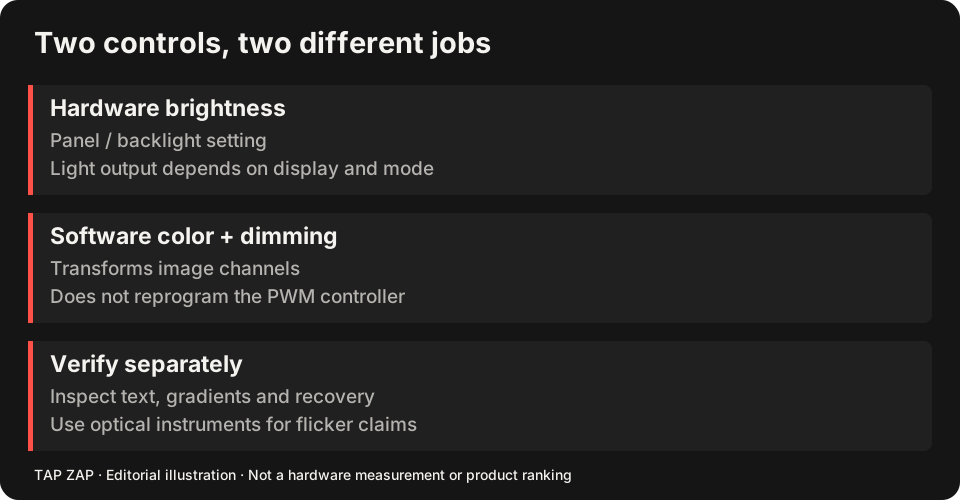
Hardware brightness operates through the display’s electronics. Depending on the panel and mode, that may change current, PWM duty cycle or a combination of mechanisms. Software dimming changes pixel/image values before display output. The same slider percentage on two monitors does not imply the same luminance or waveform.
The useful question is whether your exact display has a measured hardware operating range worth retaining. Software dimming can make the image darker while that setting stays fixed; it does not establish the optical behavior of that setting.
How to read a display-specific measurement
A useful report names the exact panel or device, brightness settings, SDR/HDR, refresh rate, power mode, test content, instrument and captured waveform. Look for what changes across the range you would use. A report for a similarly named laptop, a different panel supplier or a different HDR mode is a lead to investigate, not equivalent evidence.
Illustrative example only: suppose a report for one named LCD measured a strongly pulsed waveform at 20% hardware brightness and a substantially steadier waveform at 80% in SDR at one refresh rate. That would justify testing 80% plus image dimming on that LCD. It would not establish that 80% or 100% is appropriate for another panel, or that the measured setup had no other temporal modulation. No such named-device measurement is being claimed for Tap Zap by this example.
Do the practical comparison without forcing maximum output
Start at a comfortable setting in the actual room. If trustworthy model-specific measurements identify a useful higher hardware range, compare that range with modest software dimming. Keep the same document, profile, refresh rate and mode. Do not leave an uncomfortably bright screen at maximum because an app or article calls it safe.
On an LCD, retaining a brighter backlight can increase power use and may leave a brighter black level even when image values are reduced. Compression of output values can reduce dark-tone separation. On OLED, pixel content and drive behavior differ, so an LCD backlight argument cannot simply be reused.
An acceptance checklist for this particular strategy
Compare black text, a gray ramp, video and your normal apps. Record both controls separately: for example, “hardware 80%, software setting X,” rather than just “brightness 40%.” The software percentage does not establish half the luminance. See the transfer-table worked example for why.
Then check OFF, Quit, wake and reconnect. A phone-camera comparison may reveal a changed band pattern, but cannot certify frequency, depth or safety. Optical claims require suitable measurements. Use the Mac or Windows buying guide only after identifying the actual display-control requirement.
About this guide
Written by Tap Zap. We make the software discussed here. Updated 10 October 2026 to distinguish product behavior from display-specific measurements and health outcomes. The linked documentation and studies explain the scope of these claims. Read our editorial policy, evidence limits and corrections process.
Compare screen controls · All guides · Downloads and compatibility