 TAP ZAP
At a glance
| Decision | Tap Zap | Apple Night Shift |
|---|---|---|
| Listed cost | $39 USD one-time | Included with supported Macs |
| License details | Three devices per license and lifetime updates. No free Mac/Windows trial; a 30-day refund policy applies. Localized checkout prices and taxes may differ. | There is no separate app purchase. Apple documents supported Mac models and notes that external-display behavior depends on the display. |
| Platform | macOS 12+ and Windows 10+; separate free Linux beta | Supported Macs on macOS Sierra 10.12.4 or later |
| Main controls | Warmth, software brightness, and DAY / EVENING / NIGHT presets | Built-in warmth adjustment with manual and scheduled activation |
| Best fit | A compact interface for manual warmth and dimming across Mac and Windows | Mac users who want a warmer display without another app |
| Official sources | Tap Zap product page · Tap Zap FAQ · Tap Zap downloads · Tap Zap refund policy | Apple Night Shift guide |
Night Shift already has manual control and scheduling
Apple documents custom hours, sunset-to-sunrise scheduling, a manual on/off option, and a warmth slider. Describing Night Shift as “automatic only” would be wrong. You can choose how warm the screen looks and when the setting applies without installing an additional app. Apple’s setup instructions
Tap Zap offers another control surface with its own presets and software brightness. That is useful if you regularly want to adjust picture brightness separately from hardware brightness. If you only want an evening tint, Night Shift is simpler to adopt and has no separate purchase cost.
A concrete Mac walkthrough: warmth first, dimming second
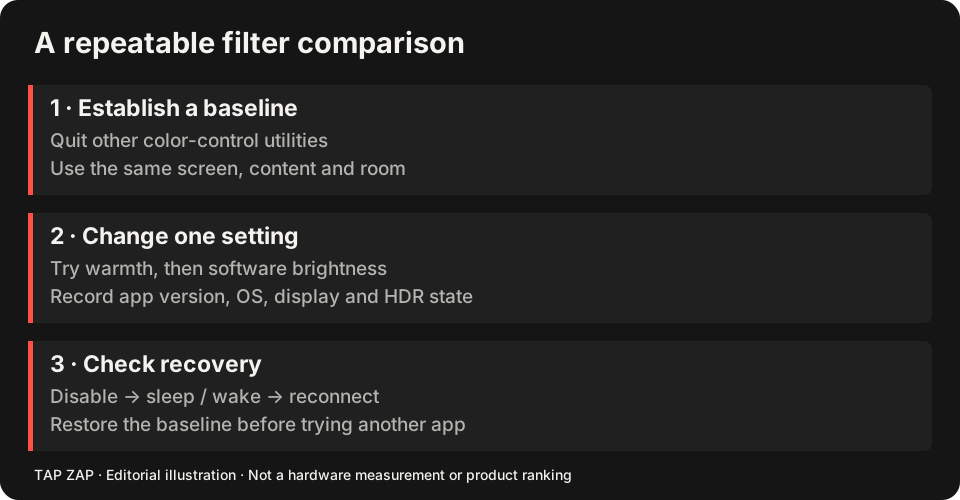
Open Apple menu → System Settings → Displays → Night Shift. Compare manual activation, a custom schedule, and the warmth slider on a familiar white document. Use the Mac’s brightness keys or the monitor’s own brightness menu separately. Night Shift’s warmth slider is not an independent software-brightness control. Apple setup instructions
Next disable Night Shift and other filters. Open Tap Zap from its bolt menu-bar icon, choose EVENING and move BRIGHTNESS while leaving the hardware brightness unchanged. Toggle ZAP off to inspect ordinary colors. DAY is another warm preset, not the off state. If the extra image-dimming control solves no remaining problem, the included Apple feature is the better value.
Tap Zap Auto Schedule uses chosen preset start times with a 60-second warmth transition in maintained source. It does not make hardware brightness a medical or optical measurement. Affected M5 Pro/Max setups remain unresolved, including cases where software reports success without a visible change. Start with the Mac buying guide and dimming tradeoffs before purchasing.
Warmth and brightness are different decisions
Night Shift’s documented controls are focused on color temperature. macOS also provides hardware brightness controls separately. Tap Zap exposes software dimming alongside warmth, allowing you to make the picture darker without using the hardware brightness slider for that adjustment.
That distinction can matter on a particular display, but it does not mean every Mac uses PWM at low brightness or that Tap Zap eliminates flicker. Panel modulation is a physical behavior. A color setting, app status indicator, or screenshot cannot verify it.
The strongest argument for Night Shift is cost and convenience
Night Shift is included on supported Macs. There is no additional license, no third-party installer, and no separate app to maintain. For a personal laptop used mainly for reading and writing, try that option before assuming you need paid software.
Tap Zap lists a three-device license with lifetime updates and a 30-day refund policy. It has no free Mac/Windows trial. You are paying for its controls and workflow; the purchase should follow a specific need rather than a promise of guaranteed sleep improvement or eye protection.
Mac and external-display compatibility
Apple lists Mac-model and OS requirements and says external-display behavior depends on the display. Tap Zap currently lists macOS 12+ for its Mac download. Those are different minimum requirements, and neither statement establishes identical behavior on every monitor. Night Shift requirements Tap Zap downloads
Some M5 Pro/Max configurations have an unresolved Tap Zap issue in which accepted color adjustments do not visibly change the screen. We cannot recommend buying on an assumption that the issue is fixed. If Night Shift works and meets your needs on an affected Mac, keep using it.
Keep a return path while comparing
Keep a record of the Night Shift warmth and schedule, then turn its schedule and manual activation off for the comparison. The Mac-only alternatives guide also compares f.lux and Iris.
- Compare EVENING and BRIGHTNESS against the same document at unchanged hardware brightness.
- Use ZAP off, then Quit, to check ordinary appearance on the built-in and external screens.
- Check wake and the intended schedule; restore Night Shift if separate dimming adds no useful working control.
Sources and scope
Researched on 3 October 2026 using official product pages and documentation. Tap Zap’s maintained source was also checked for its controls and known compatibility limits. We did not conduct controlled hardware, medical, or performance tests for this article. Prices and features can change; confirm current terms before purchase.
Known Tap Zap limitation: some M5 Pro/Max configurations remain unresolved. Mac/Windows has no free trial; see the FAQ and refund policy. The Linux edition is a separate free experimental beta.
See Tap Zap on your setup.
Check requirements and installation details before choosing the paid Mac/Windows edition. A free option may cover everything you need.