 TAP ZAP
The shortlist, by need
These are recommendations for different jobs, rather than an overall score or a laboratory ranking.
Apple Night Shift
Included with supported Macs
Built-in warmth adjustment with manual and scheduled activation
Windows Night light
Included with Windows 10 and 11
Built-in warmth strength, sunset scheduling, and custom hours
Iris
Pro $14.99; subscription $1.99/month
Color and software brightness controls with many modes and advanced options
Iris product page · Iris pricing and license terms · Iris external-monitor guide
Tap Zap
$39 USD one-time
Warmth, software brightness, and DAY / EVENING / NIGHT presets
Tap Zap product page · Tap Zap FAQ · Tap Zap downloads · Tap Zap refund policy
Shared control is different from independent matching
One warmth or brightness target applied across displays does not mean both panels emit matching color or luminance. Tap Zap’s main controls are shared; do not buy on the assumption of separate brightness or color sliders for every monitor. A laptop panel and an external monitor can respond differently at the same requested setting.
If your requirement is “warm the laptop but leave the reference monitor ordinary,” investigate an actual per-monitor disable workflow and test it. f.lux documents Windows per-monitor disabling; that is a different capability from equal-looking output or independent calibration. f.lux Windows monitor features
Documented paths and their evidence limits
This is a planning table, not a tested hardware compatibility matrix. No direct/docked/HDR combinations have been newly certified for this article. Record the exact machine, OS/app version, monitor and connection next to any result you obtain.
| Path | What is documented | What remains to test |
|---|---|---|
| Mac built-in or direct external | Night Shift support depends on Mac/display; Tap Zap uses the Mac color path. | Visible warmth/dimming, ordinary colors, wake and profile interactions. |
| Windows display with a supported driver | Night light provides warmth; unsupported drivers include DisplayLink and Basic Display. | Each actual monitor/driver and its off-state. |
| Windows USB/dock display | Iris documents a Windows high-level API; f.lux has driver-specific release notes. | Your dock/GPU/driver, reconnect and required applications. |
| Affected M5 Pro/Max setup | Tap Zap compatibility remains unresolved. | A reliable fix has not been established. |
| HDR or protected/fullscreen path | Behavior can differ from ordinary SDR desktop. | Exact app and mode; desktop screenshots do not establish optical behavior. |
Separate the connection from the product
Test one screen directly where possible, then the same screen through the dock without changing the app setting. If the result changes, keep both observations with their connection details. Do not describe the monitor as universally supported or unsupported from one adapter result.
Iris’s high-level API advice is Windows-specific; its Mac/Linux guidance is different. Microsoft’s Night light driver exclusions also matter before choosing another app. Use the official details, while treating their broad statements as guidance requiring exact-setup verification. Iris monitor article Microsoft driver limits
A reusable record for each display
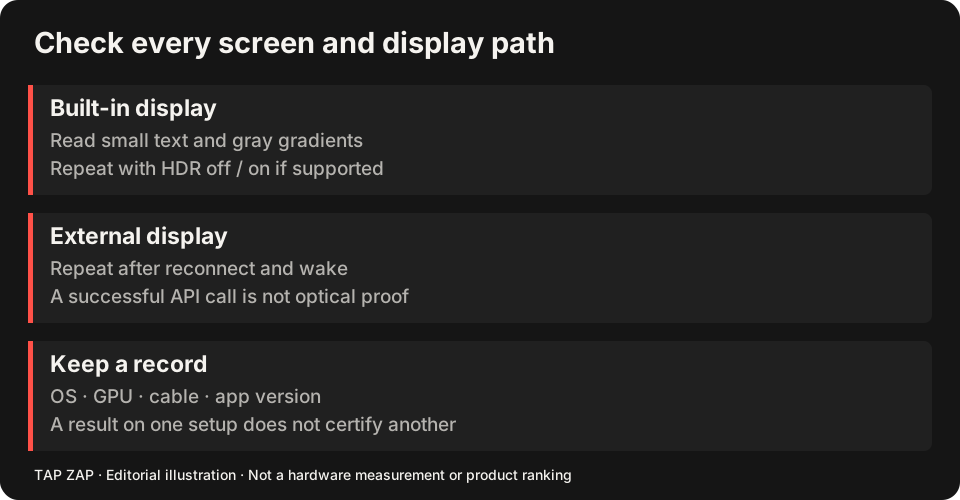
Use this format: date; computer/chip/GPU; OS build; app version and renderer; display model; cable/dock and driver; SDR/HDR; refresh rate; profile; requested preset/brightness; visible result; OFF/Quit; wake; reconnect. Record “not tested” for a missing step instead of a pass.
The Mac guide and Windows guide choose the platform shortlist. Read Tap Zap vs Iris for API and license differences, and Tap Zap vs Night light for the Windows built-in choice.
Test restoration before relying on the whole desk
A successful API call means the software request succeeded; it is not proof of emitted light. Transfer tables and readback explains this distinction, and the phone-camera guide explains why bands cannot certify a safe or flicker-free setup.
- Quit other filters and start with a modest setting on one display.
- Add the remaining displays; check each visible result separately.
- Verify OFF and Quit, then sleep/wake and the reconnects you normally perform.
- If one screen fails, retain a working configuration and report that exact path rather than generalizing to all monitors.
Sources and scope
Researched on 3 October 2026 using official product pages and documentation. Tap Zap’s maintained source was also checked for its controls and known compatibility limits. We did not conduct controlled hardware, medical, or performance tests for this article. Prices and features can change; confirm current terms before purchase.
- f.lux Windows features
- Iris external-monitor guide
- Iris pricing and license terms
- Iris product page
- Microsoft Night light and display guide
- Apple Night Shift guide
- Tap Zap downloads
- Tap Zap FAQ
- Tap Zap product page
- Tap Zap refund policy
Known Tap Zap limitation: some M5 Pro/Max configurations remain unresolved. Mac/Windows has no free trial; see the FAQ and refund policy. The Linux edition is a separate free experimental beta.
See Tap Zap on your setup.
Check requirements and installation details before choosing the paid Mac/Windows edition. A free option may cover everything you need.