 TAP ZAP
At a glance
| Decision | Tap Zap | f.lux |
|---|---|---|
| Listed cost | $39 USD one-time | Free for personal use |
| License details | Three devices per license and lifetime updates. No free Mac/Windows trial; a 30-day refund policy applies. Localized checkout prices and taxes may differ. | Employer-approved individual use is allowed; centrally managed Windows deployments have separate corporate licensing. |
| Platform | macOS 12+ and Windows 10+; separate free Linux beta | Mac and Windows; a Linux download is also listed |
| Main controls | Warmth, software brightness, and DAY / EVENING / NIGHT presets | Time-of-day color transitions, app exclusions, and special color modes |
| Best fit | A compact interface for manual warmth and dimming across Mac and Windows | Free automatic warmth with established scheduling options |
| Official sources | Tap Zap product page · Tap Zap FAQ · Tap Zap downloads · Tap Zap refund policy | f.lux product page · f.lux FAQ and licensing · f.lux Windows features · f.lux Mac guide |
Scheduling or a small set of controls?
f.lux is a strong first choice when you want color changes to follow your day with little ongoing input. Its Mac guide describes location, wake time, gradual transitions, and temporary disabling. Windows offers additional scheduling and color options. Those are documented capabilities, rather than a claim that every version behaves identically. Mac setup guide Windows feature notes
Tap Zap groups warmth and software brightness into a compact control panel with DAY, EVENING, and NIGHT presets. Its appeal is the way those controls are arranged. If the f.lux schedule already gives you the screen you want, buying another app adds little. If you regularly change brightness and warmth together, compare the two workflows on your own machine.
Compare one evening task in both apps
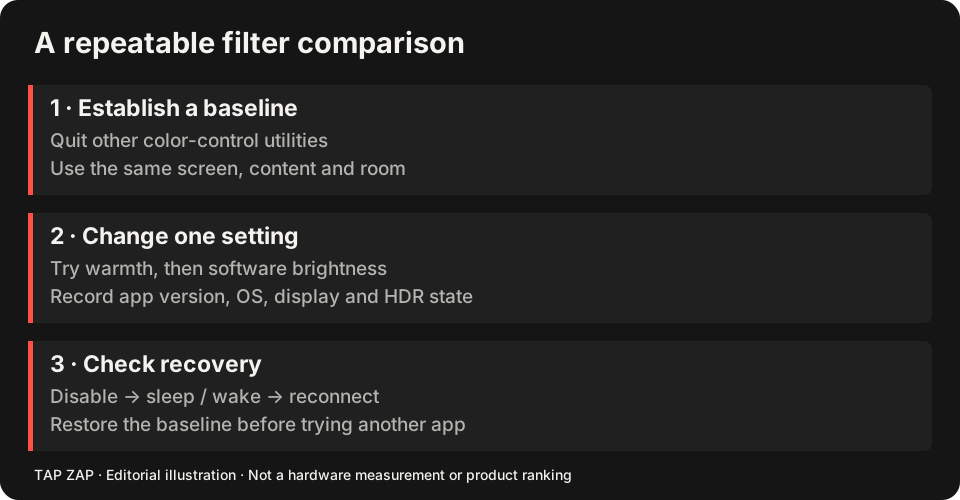
Use the same document and room. In f.lux on Mac, set location and wake time, preview the daytime/sunset/bedtime settings, then try Disable → For current app in a color-sensitive editor. Its schedule and app exclusion are distinct advantages when you want the utility to manage itself. Windows has its own feature set; use its documented dimming controls rather than assuming every Mac menu exists there. Mac controls Windows controls
In Tap Zap, open the menu-bar or tray panel, select EVENING, adjust BRIGHTNESS, then toggle ZAP off and on. Compare the effort of reaching a readable document with the effort of returning to ordinary colors. Auto Schedule can start named warmth presets at chosen times; it is a different workflow from f.lux’s location/wake-time model. The schedule guide explains manual holds and rotating hours.
These are reproducible evaluation tasks based on documentation and maintained source, not results from controlled comparative hardware testing. A red appearance is also not proof of a measured zero-blue spectrum.
Red modes and dimming: give f.lux credit
The f.lux Mac guide includes Darkroom, which inverts colors and emphasizes red. Its Windows FAQ documents dimming hotkeys and expanded color ranges. It would be misleading to describe f.lux as only a mild yellow tint or say Tap Zap is the only red-screen option. Darkroom documentation Windows dimming and color range
Tap Zap’s NIGHT preset also emphasizes red, with a separate brightness control. These are software display adjustments. Neither a red screenshot nor a successful color-setting API call establishes the emitted spectrum or proves the panel has stopped flickering. The useful comparison is the visible result, readability, and control workflow on the exact display.
What the price buys
f.lux costs nothing for personal use. Its FAQ also allows individually installed use at work with employer permission, while centrally managed Windows deployments have separate licensing. Treat that distinction seriously when choosing for a company. Personal pricing Workplace licensing
Tap Zap lists a one-time license for three devices with lifetime updates. It has no free Mac/Windows trial. The refund policy provides a purchase-and-evaluate route, which is different from a free trial. Spending is justified only if its controls solve a problem your free setup leaves unresolved.
Compatibility is a test, not a brand promise
f.lux documents display-driver, docking, and color-profile limitations. Tap Zap also depends on the operating system and display path; affected M5 Pro/Max configurations remain an unresolved case in our compatibility investigation. We have not run a controlled head-to-head hardware benchmark for this article. Known f.lux issues
Before choosing, check every screen with the filter on, off, and after sleep. If one app works reliably on your setup and the other does not, the working app is the better choice. A preference for the interface cannot outweigh a failed compatibility test.
Keep a return path while comparing
Record location, wake time, app exclusions, dimming shortcuts and color effects. Then disable f.lux and compare one reading task in Tap Zap; there is no automatic settings importer. The multi-product f.lux alternatives guide covers built-in warmth, LightBulb and Iris too.
- Test EVENING plus BRIGHTNESS on the same document.
- Try the color-sensitive app where you relied on an exclusion; verify that the replacement workflow is sufficient.
- Check OFF, Quit and wake on every screen, retaining the recorded f.lux settings until the replacement earns its place.
Sources and scope
Researched on 3 October 2026 using official product pages and documentation. Tap Zap’s maintained source was also checked for its controls and known compatibility limits. We did not conduct controlled hardware, medical, or performance tests for this article. Prices and features can change; confirm current terms before purchase.
- f.lux FAQ and licensing
- f.lux product page
- f.lux Mac guide
- f.lux Windows features
- Tap Zap downloads
- Tap Zap FAQ
- Tap Zap product page
- Tap Zap refund policy
Known Tap Zap limitation: some M5 Pro/Max configurations remain unresolved. Mac/Windows has no free trial; see the FAQ and refund policy. The Linux edition is a separate free experimental beta.
See Tap Zap on your setup.
Check requirements and installation details before choosing the paid Mac/Windows edition. A free option may cover everything you need.