 TAP ZAP
The shortlist, by need
These are recommendations for different jobs, rather than an overall score or a laboratory ranking.
Apple Night Shift
Included with supported Macs
Built-in warmth adjustment with manual and scheduled activation
Windows Night light
Included with Windows 10 and 11
Built-in warmth strength, sunset scheduling, and custom hours
f.lux
Free for personal use
Time-of-day color transitions, app exclusions, and special color modes
f.lux product page · f.lux FAQ and licensing · f.lux Windows features · f.lux Mac guide
Tap Zap
$39 USD one-time
Warmth, software brightness, and DAY / EVENING / NIGHT presets
Tap Zap product page · Tap Zap FAQ · Tap Zap downloads · Tap Zap refund policy
Write the work pattern before entering times
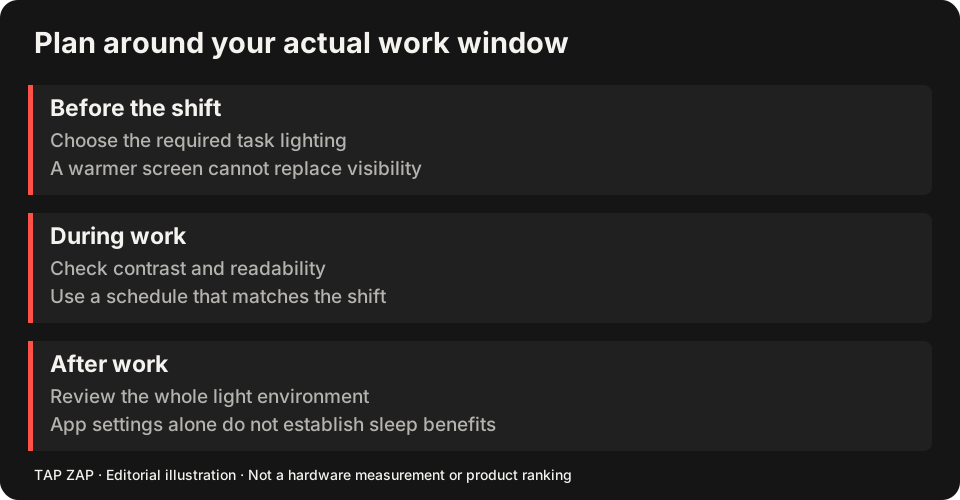
For a concrete interface example, suppose you use a laptop during a 22:00–06:00 shift and again briefly at 08:00. Decide when you want a particular appearance for each task. Do not copy sunset settings simply because they are the defaults. Room lighting, breaks and the task can change while the clock continues.
A rotating week introduces a separate requirement: are the hours repeated daily, selected by weekday, or changed manually? Do not assume a daily scheduler imports a rota or detects when you are going to sleep. These examples describe software timing only, not health recommendations.
Example: custom warmth hours with built-in tools
Night Shift on Mac and Night light on Windows offer custom hours. As an interface test, set a short period spanning the next few minutes, confirm the on/off transition, then enter your intended hours. Sunset scheduling depends on location; verify it separately if you choose it. Night Shift schedule Night light schedule
If custom warmth is all you need, use the included option. Compare Night Shift or Night light with TAP ZAP before paying. f.lux’s location/wake-time model is different; the f.lux comparison explains its documented controls.
Example: Tap Zap daily starts and a manual hold
In maintained Mac/Windows source, Auto Schedule starts selected DAY / EVENING / NIGHT warmth presets at chosen local times, with a 60-second transition. The brightness target remains separate. Enabling a schedule between starts can hold the present warmth until the next selected start; it should not be assumed to jump immediately to a historical preset.
For an example schedule, choose DAY 14:00, EVENING 21:30 and NIGHT 06:30 only if those appearances suit your tasks. If you manually choose a different warmth at 23:00, the source contract holds it until the next scheduled start. At 06:30, the next transition can resume. This is an illustration of daily behavior, not a recommended exposure plan. For a rota change, edit the starts or use manual control; no automatic weekly-rota feature is claimed.
Verify the moments that can surprise you
Check your installed version’s controls and status text, not only the clock settings. Wake the computer on either side of a start, try a manual override and verify off-state restoration. A system time-zone change is another reason to check the next start. The night-mode limitations guide separates appearance controls from exposure and physiology.
- Write down the schedule and whether each preset start is selected.
- Observe one start while awake; allow the warmth transition to finish.
- Change warmth manually and confirm when automation resumes.
- Check wake after a missed start, then ZAP off and Quit. Re-enter hours when your rota changes.
Sources and scope
Researched on 3 October 2026 using official product pages and documentation. Tap Zap’s maintained source was also checked for its controls and known compatibility limits. We did not conduct controlled hardware, medical, or performance tests for this article. Prices and features can change; confirm current terms before purchase.
- f.lux FAQ and licensing
- f.lux product page
- f.lux Mac guide
- f.lux Windows features
- Microsoft Night light and display guide
- Apple Night Shift guide
- Tap Zap downloads
- Tap Zap FAQ
- Tap Zap product page
- Tap Zap refund policy
Known Tap Zap limitation: some M5 Pro/Max configurations remain unresolved. Mac/Windows has no free trial; see the FAQ and refund policy. The Linux edition is a separate free experimental beta.
See Tap Zap on your setup.
Check requirements and installation details before choosing the paid Mac/Windows edition. A free option may cover everything you need.