 TAP ZAP
The shortlist, by need
These are recommendations for different jobs, rather than an overall score or a laboratory ranking.
Redshift
Free, open-source project
Configurable color temperature adjustment
Tap Zap Linux beta
Free experimental beta
Experimental warmth and dimming controls
Find the session before choosing a package
Desktop and display server matter. Check your session information for GNOME, Plasma, Sway or Hyprland and X11 versus Wayland. A utility that changes X11 gamma ramps is not automatically allowed to control a Wayland compositor. Use the instructions for the installed desktop/version.
| Your setup | Start with | Next step |
|---|---|---|
| GNOME | GNOME Night Light | Verify schedule and ordinary colors after disabling. |
| KDE Plasma | Night Color | Use the installed version’s display settings. |
| Compatible X11 session | Native option or Redshift | Check adjustment method and distribution package. |
| Sway/Hyprland or other Wayland session | Compositor-supported controls | Do not assume an X11 tool can control the session. |
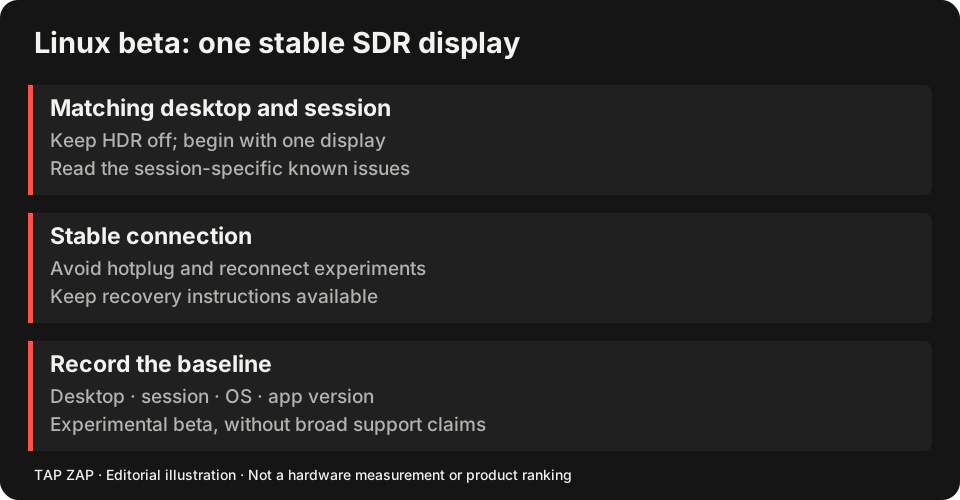
| Tap Zap beta testing | Matching desktop/session package | Read known issues and test one SDR screen with recovery available. |
Native warmth is the routine recommendation
GNOME documents scheduled Night Light and color temperature. Plasma provides native color controls. These are integrated options to evaluate before adding another process that competes for the same display transform. Redshift’s project documents adjustment methods; choose a compatible path rather than treating “Linux” as one graphics stack. GNOME instructions KDE settings Redshift project
f.lux and Iris also list Linux downloads, but a download listing is not proof for a current compositor. The f.lux comparison and Iris comparison explain the general product tradeoffs; their Mac/Windows recommendations are not Linux compatibility results.
Tap Zap beta: concrete limits before a test
Use Linux setup and read the known-issues record first. Recorded defects include X11 crash/calibration recovery, a Sway timeout that can leave a filter active while the UI says OFF, and Plasma disconnect/HDR problems. Clipboard and settings failures are also recorded. Broad GPU, HDR, suspend and hotplug behavior remain unestablished.
Begin with one SDR display, other color utilities off, and PWM-Safe, Allow Extreme Dim and Launch at Login off. Do not hotplug a filtered Plasma monitor or turn HDR on during the initial test. A moving slider is not proof that the compositor changed a window outside the application.
Make restoration the first acceptance task
If the filter remains or the app stalls, follow the documented fallback: try OFF and a normal close; save work and log out/in if needed, then restore the normal profile where necessary. Exact calibration restoration is not guaranteed by that fallback. Do not delete recovery-state files while a filter may be active. The technical reference separates software state from physical display proof.
- Select the package matching the exact desktop/session.
- Save work and read the recovery steps before starting.
- Apply a modest setting; inspect another app, then test OFF and normal Quit.
- Report desktop/session, GPU, package/version, terminal errors and visible outcome. Stop if restoration is uncertain.
Sources and scope
Researched on 3 October 2026 using official product pages and documentation. Tap Zap’s maintained source was also checked for its controls and known compatibility limits. We did not conduct controlled hardware, medical, or performance tests for this article. Prices and features can change; confirm current terms before purchase.
Known Tap Zap limitation: some M5 Pro/Max configurations remain unresolved. Mac/Windows has no free trial; see the FAQ and refund policy. The Linux edition is a separate free experimental beta.
Check your desktop and session first.
Start with the Linux guide and known issues. Choose a matching session, test one SDR display, and keep its recovery instructions available.